Choose your platform
Create your deck — paste content, add exercises
Open the Editor, name your deck, paste your study material on the left, and watch exercises build up on the right. All 5 exercise types are available from the type tabs.
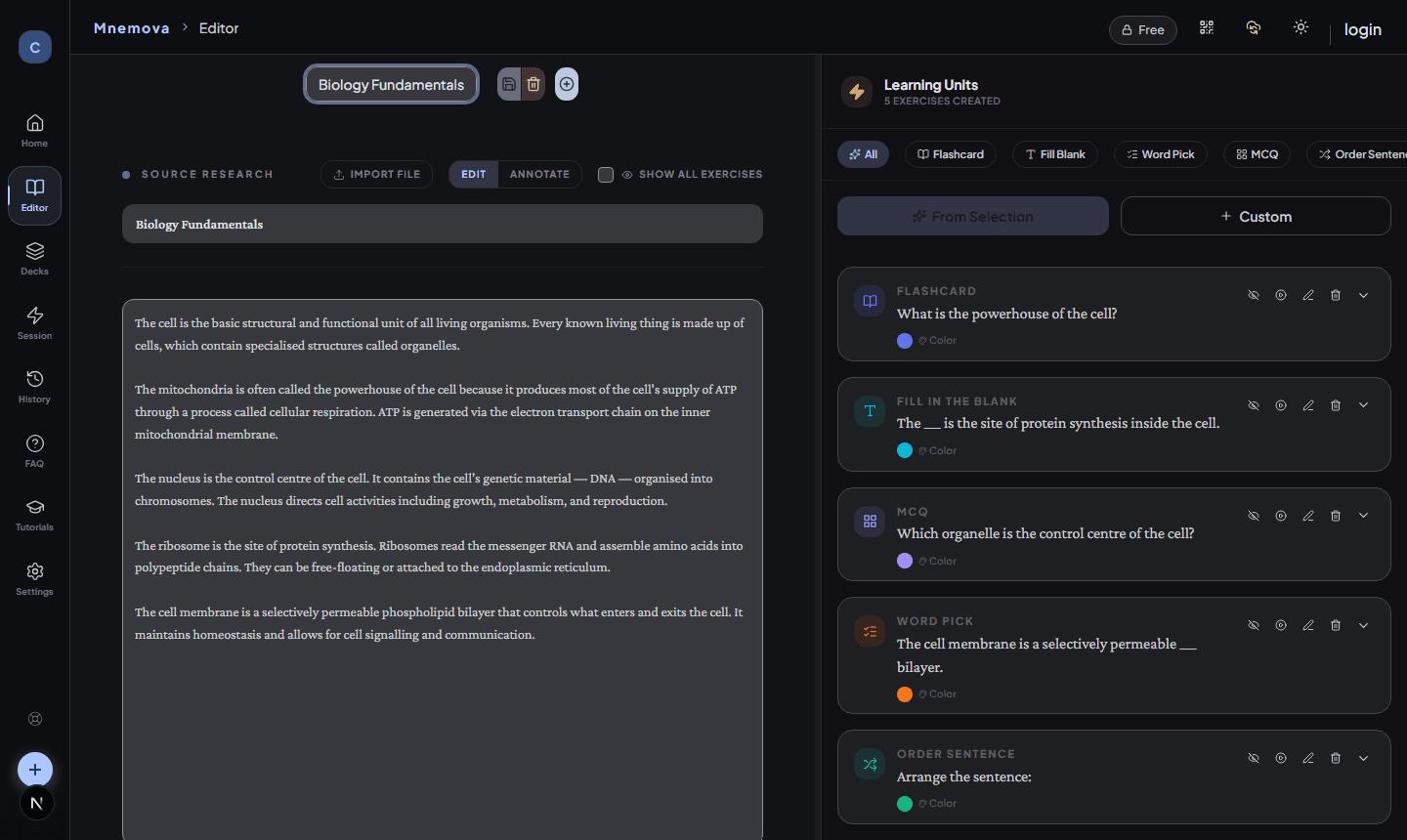
① Deck name — click to rename, switch deck, or create a new one.
② Content canvas — paste any text: lecture notes, articles, textbook excerpts.
③ Exercise type tabs — filter the right panel by Flashcard, Fill Blank, Word Pick, MCQ, or Order Sentence.
④ Learning Units panel — every exercise you create appears here in real time.
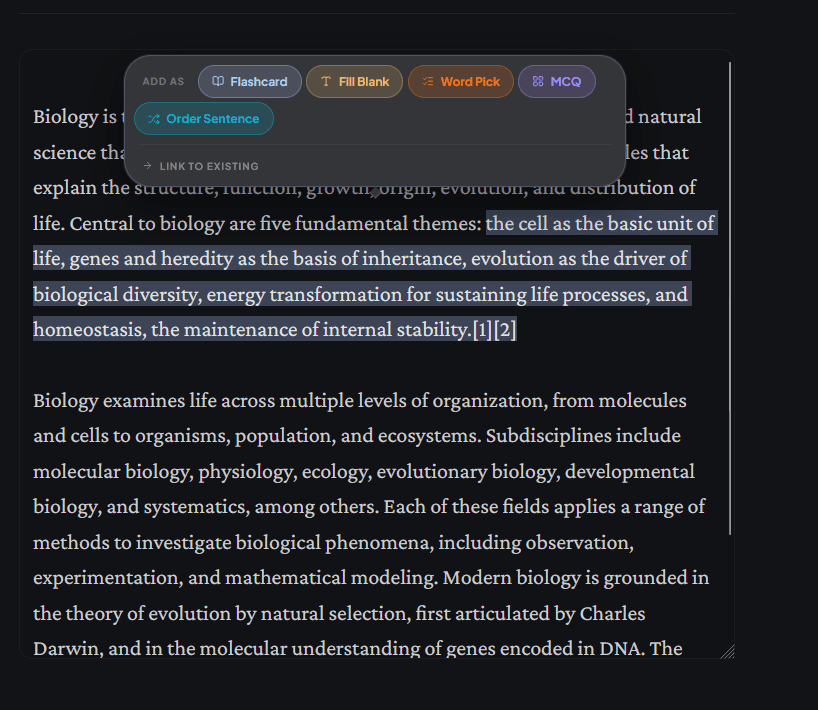
Select text — a popup appears to create an exercise instantly
Switch to Annotate mode and drag over any phrase in your content. A small popup surfaces right where you selected, showing every exercise type you can create. Pick one and it lands in your panel — no extra clicks.
The panel waits — fill fields by typing or by selecting text
Once an exercise is created it sits in the panel waiting to be completed. You have two ways to fill it: type directly into the fields on the panel, or go back to the text area, select a new phrase, and pick which property it should become from the new popup that appears.
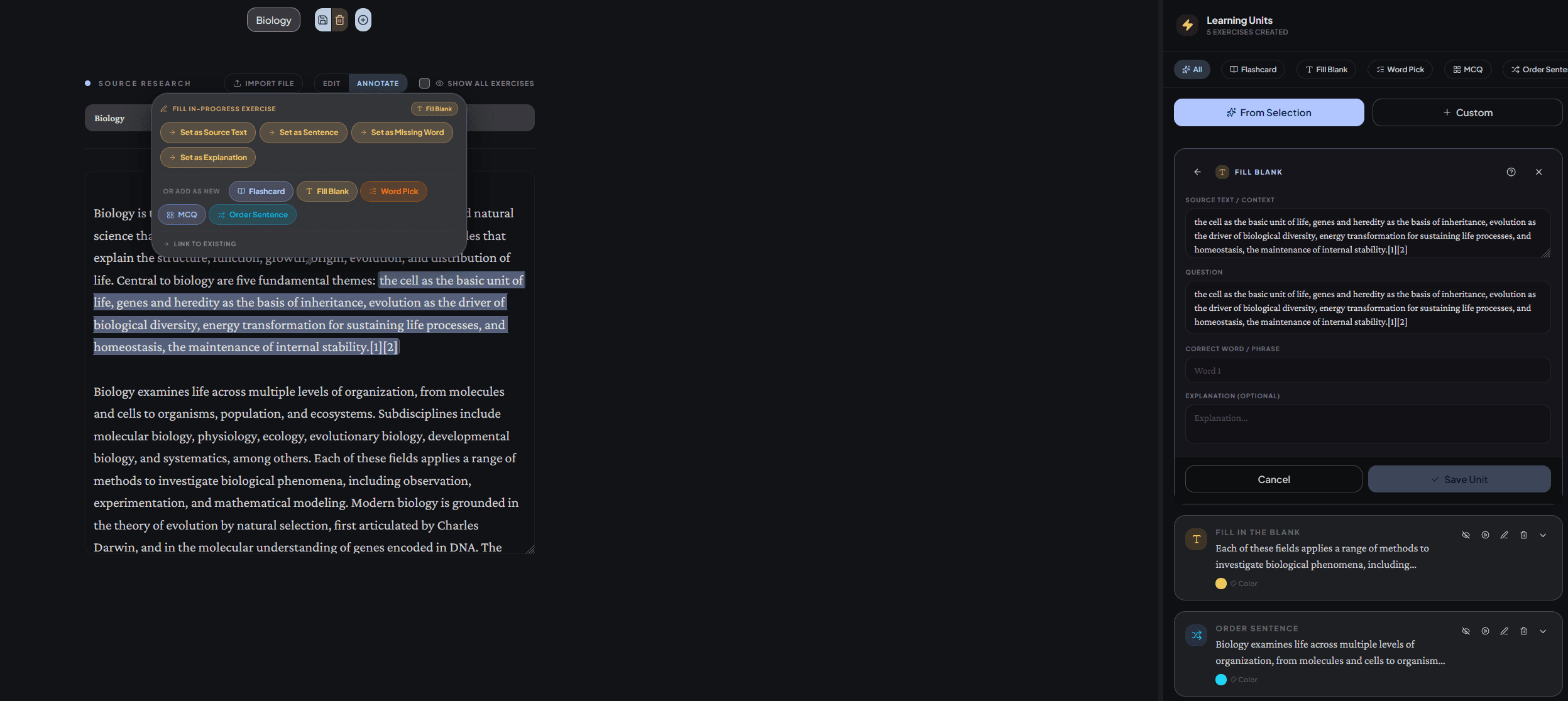
The exercise panel opens on the right with empty fields as soon as you create an exercise — it stays open until you save.
You can type answers directly into any field on the panel at any time.
Or: highlight a new phrase in the text area — a popup appears letting you choose which property of the exercise that selection should fill (e.g. the question, the answer, a distractor).
Mix both methods freely — type some fields, select text for others — then save when the exercise is complete.
Set your pace — then start learning
The Session page lists every deck with its own study panel. Each deck is independent — you configure and start them separately. Press the settings icon next to the Start button to open that deck's study settings, then hit Start when you're ready.
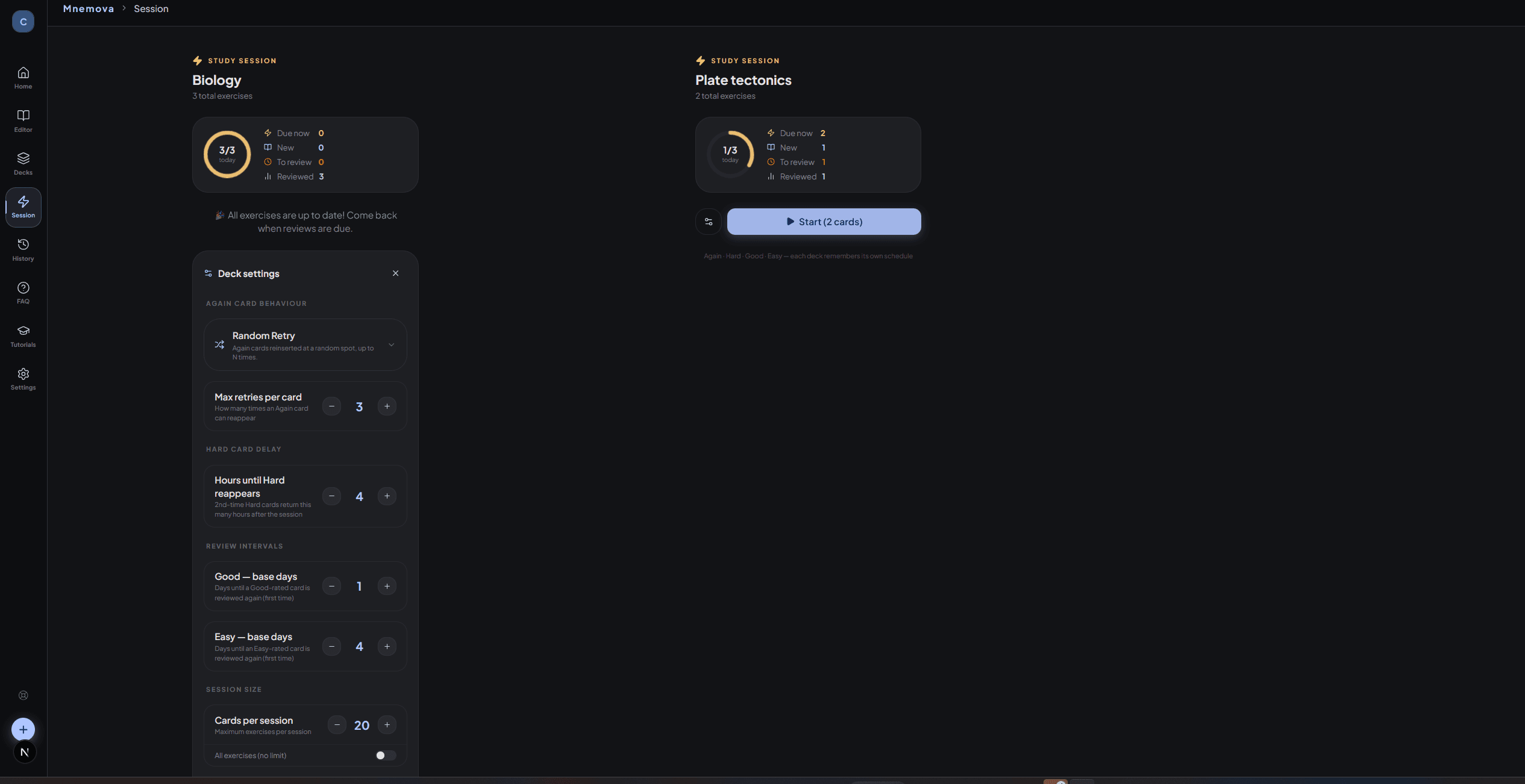
The circular ring shows how much of today's workload you've completed for that deck — fills up as you review cards.
Opens the per-deck study settings. Adjust new cards per day, daily review limit, and SM-2 parameters independently for each deck.
Launches the learning session for that deck immediately — only cards that are due today (or overdue) are queued.
Cards that are overdue and must be reviewed today to stay on track with the spaced-repetition schedule.
Fresh cards that have never been studied — the count respects your "new cards per day" limit from settings.
Cards that are due for a scheduled review today based on how well you rated them in past sessions.
Each deck is created with default study settings already applied. You can adjust them per-deck from the settings icon next to Start, or change the global defaults from the Settings page in the left sidebar.